Setup
Contents
Setup a dedicated Linux machine
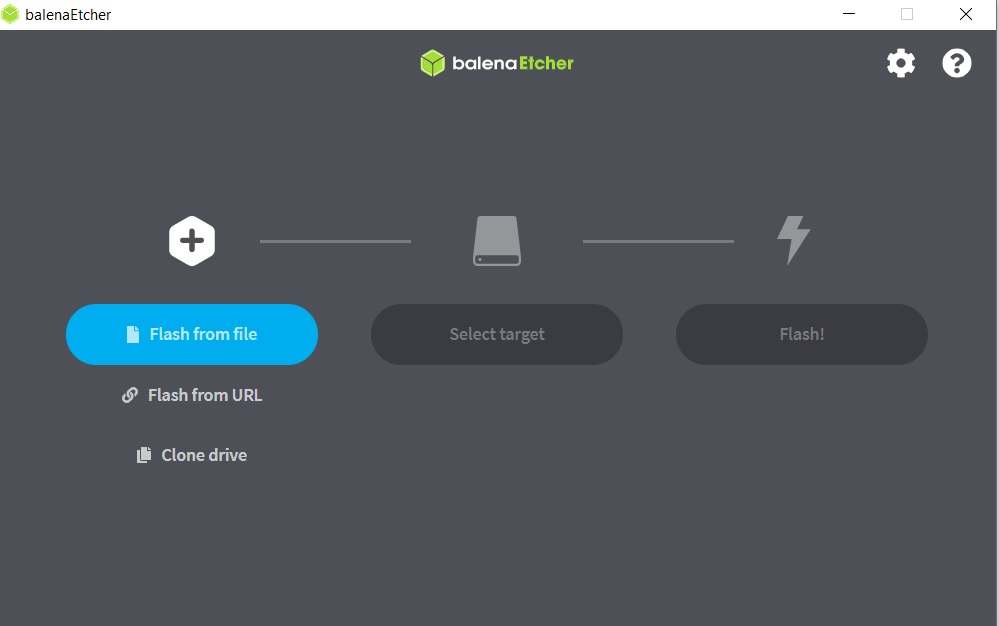
This option is good if you have an old laptop and will only have the Linux system on it. It will let you run the admin commands as a root user and is the recommended approach.Download a Linux distribution and install it on your computer. Make sure you have a backup of all the files. This will be a dedicated Linux machine. An easy way to do this is create a bootable usb flash drive. You only need a 2 Gb drive. We can download software like "balenaEtcher" and "debian iso" from the web or also from the following links:
balenaEtcher-Setup-1.10.2.exe
Debian ISO is at this location.
debian-11.4.0-i386-netinst.iso
These links may not work if you are on the campus network as the files are on an ip address.
Converting your computer to "dual boot" computer.
From your windows system use the tool "fdisk" to create a partition. Download a Linux distribution and install it on the new partition. You can use the bootable approach describe above. At boot time you will be asked what operating system you want to start.Cygwin
Download the Cygwin app from
This is a Unix simulator. It is not a virtual machine but a windows app.
As such you may not be able to run certain commands the way you can run them
in an actual Linux system. However the install is easy and you can run
most of the commands needed for this course.
Setup a virtual machine
You can install a virtual machine software like Oracle's virtual box that lets you install different operating systems on your windows operating system. The installation is relatively easy and you can run the admin commands. This does not need a new partition on your system. The problem is the virtual box approach consumes a lot of memory and cpu. Oracle VirtualBoxSample video that shows how to install Debian.
Installing Windows Subsystem for Linux (wsl)
Install WslYou may not be able to run all the Linux Admin commands with this approach.
Using Hills server
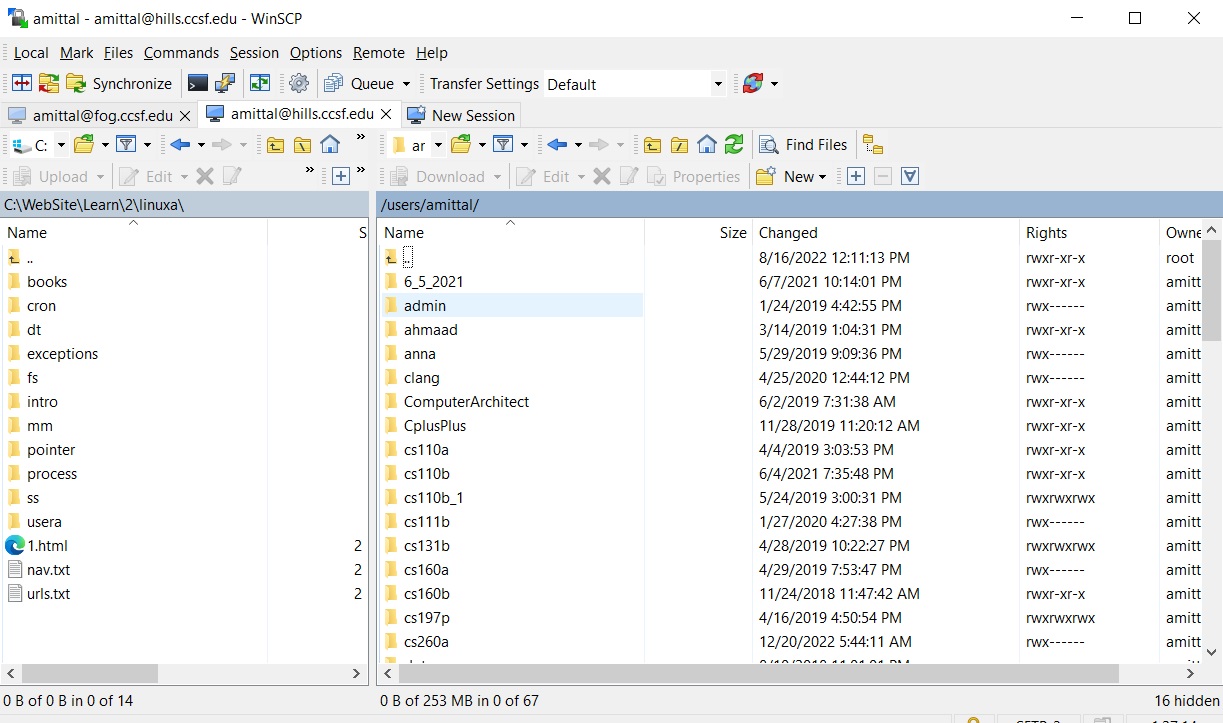
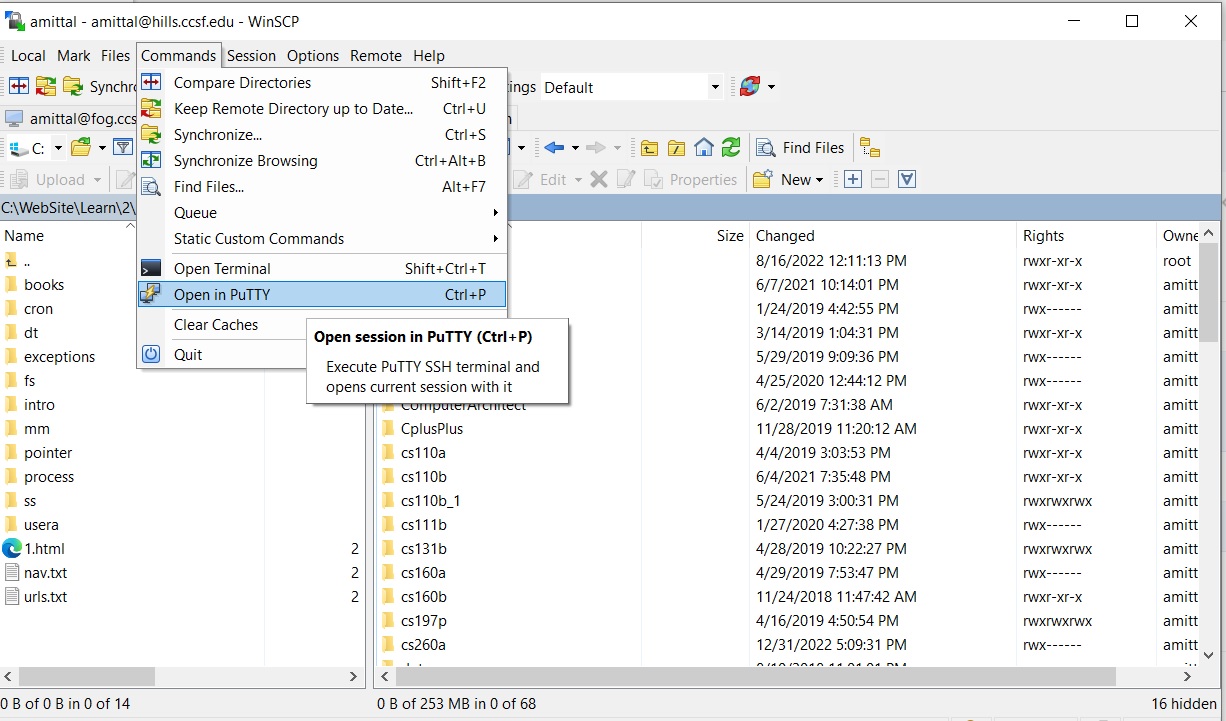
You should have access to "hills.ccsf.edu" which is a Linux box that can be accessed by Putty. There will be some restrictions with this approach and you may not be able to run all the admin commands with this approach. However it is a requirement for this course as most of the homeworks will be done on this server.A good way to access the hills server on Windows is using "WinSCP" and "putty". With "WinSCP" we can transfer files back and forth between our local system and hills server and also create, edit files on the hills server. This is handy if you do not wish to use the "vi" utility from command line. Putty is a terminal like tool that lets us connect to the hilles server and execute commands. The files can be downloaded from:
https://winscp.net/eng/download.php
https://www.putty.org/
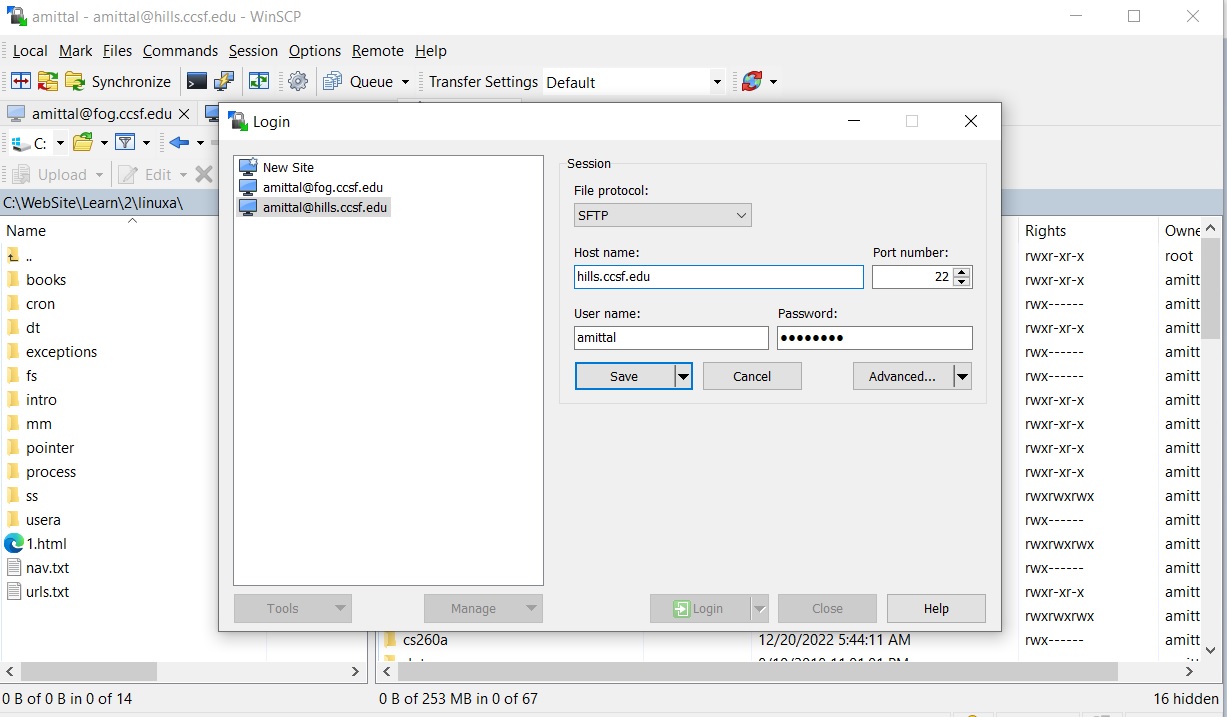
The putty download is a single file. I placed it in the "C:\Putty" folder. Upon opening WinSCP we can create a new session. Fill in the entries as below. Save the setting and try connecting to the hills server. Of course the User name and password will be yours.
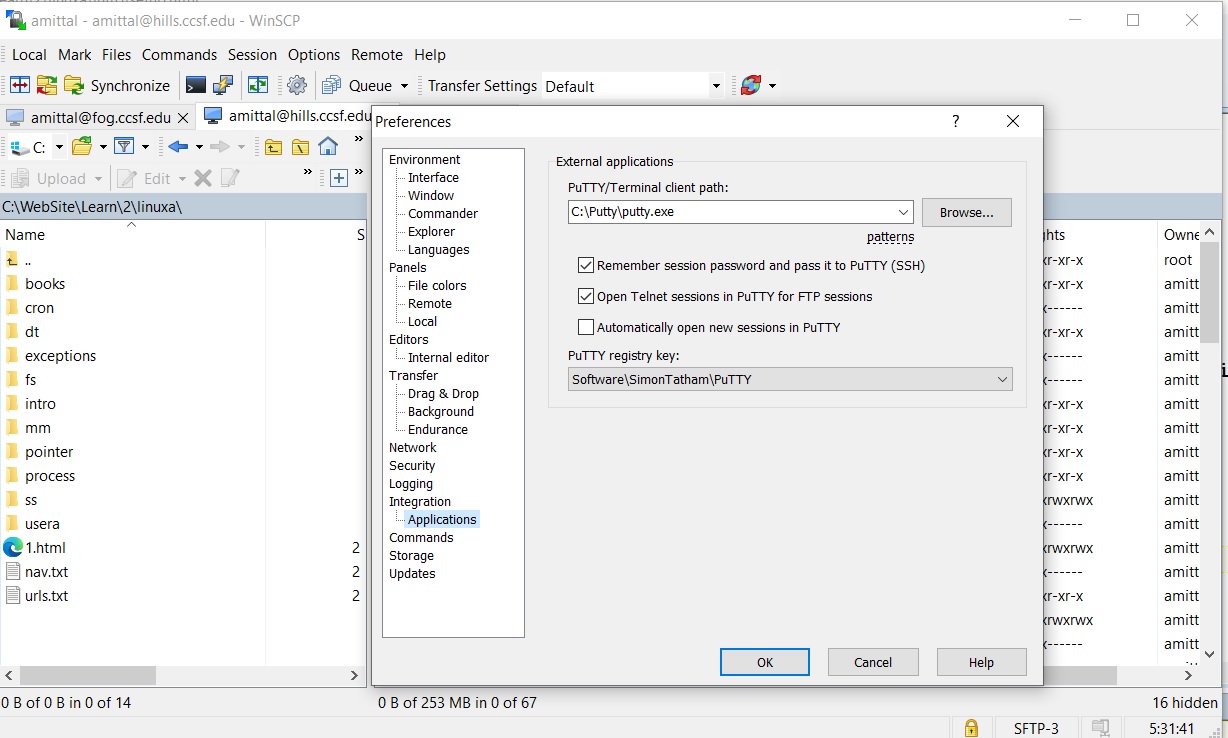
Now open up "Options/Preferences" and add the location of "putty.exe" .
To log into the hills server from the Mac, open the terminal application and use the ssh utility.
$ ssh amittal@hills.ccsf.edu
amittal@hills.ccsf.edu's password:
**********************************************************
* W A R N I N G !                                        *
*                                                        *
The same procedure can be followed from a Unix box.
Using Instructor Linux Machine
I have a Linux laptop that you can login to via Putty.HostName: 99.7.60.213 Login User: student Once you are logged in you can become root with the command: su root For password please send me an email via Canvas. The hard drive is the device "/dev/sda1". There is a flash drive in it at "/dev/sdb1". Couple of simple rules. You can use the flash drive to play around with partitions but do not create partitions on the "/dev/sda1" or format this device as this will ruin the operating system. As the user root you can create new users and run programs like "useradd". If you make changes to etc files then please revert those changes once you are done. Only one student can login at a time so if you get a timed out error while connecting then wait for some time. If you find that something is not working or is messed up then shoot me an email.