Once again you will be using the textbook , to familiarize yourself with the step-by-step exercises in the chapter. The text is quite thorough but I will supplement for those who do not have the book. Also, I will use a more traditional use of the What-If Table and introduce the most popular financial function at the same time the =PMT( ) function to calculate the monthly payment on a loan.
Before we start, take a look at the most popular financial functions and their arguments:
The arguments used in financial functions are explained below:
- Rate Required. The interest rate for the loan.
- Nper Required. The total number of payments for the loan.
- Pv Required. The present value, or the total amount that a series of future payments is worth now; also known as the principal.
- Fv Optional. The future value, or a cash balance you want to attain after the last payment is made. If fv is omitted, it is assumed to be 0 (zero), that is, the future value of a loan is 0.
- Type Optional. The number 0 (zero) or 1 and indicates when payments are due.
=PMT(rate, nper, pv, [fv], [type]) - Calculates the payment for a loan based on constant payments and a constant interest rate. i.e. Tells you the amount of your monthly payment on a loan
=NPER(rate,pmt,pv,[fv],[type]) - Returns the number of periods for an investment based on periodic, constant payments and a constant interest rate. i.e. Tells you how long it will take to payoff a loan or reach a goal amount based on monthly payments.
=FV(rate,nper,pmt,[pv],[type]) - Returns the future value of an investment based on periodic, constant payments and a constant interest rate. i.e. Tells you the amount of money you will have in the future based on rate, monthly payments etc.
=PV(rate, nper, pmt, [fv], [type]) - Returns the present value of an investment. The present value is the total amount that a series of future payments is worth now. For example, when you borrow money, the loan amount is the present value to the lender
You can use any of these formulas to perform your What If Analysis, but we will use the PMT function as described below.
To follow along, start by creating the small work area as shown below.
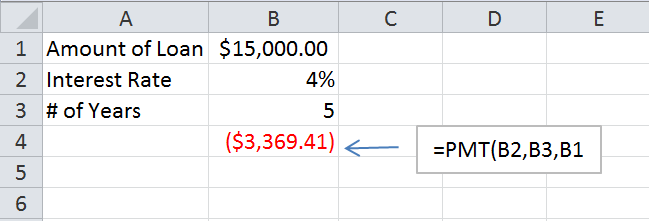
All the data in the range A1 to B3 is simple data entry, and cell B4 contains the =PMT function as shown. The result of =PMT function and many other financial functions, will show in red to indicate a negative number. This is because Excel prefers to show a payout, money going out, as a negative value, and money coming in as a positive value. there are many who believe that a negative sign should precede the values to force it to appear positive, but this seems odd to me. If you wish to do this, you could just put a minus sign in front of the entire function - =-PMT(B2,B3,B1)
The arguments for the =PMT function are as follows: =PMT(rate,nper,pv)
The first argument is the interest raate, the second argument is the term or the life of the loan, or the number of periods - the amount of payments you intend to make. The last argument is the present value or the amoutnt of the loan or the principle.
The result of the function indicates the amount you would pay for a loan of $15,000 at 4% interest, if you keep the loan for 5 years. The reason why the value is so large is that the the nper argument, the number of payments is set to 5. We probably are more interested in making more than 5 payments - not once a year but once a month. So we need to multiply the number of years by 12. If we do this, then we must recognize that the interest rate is not 4% per month, but 4% per year, so we need to adjust that by dividing it by 12. The modified function is below:
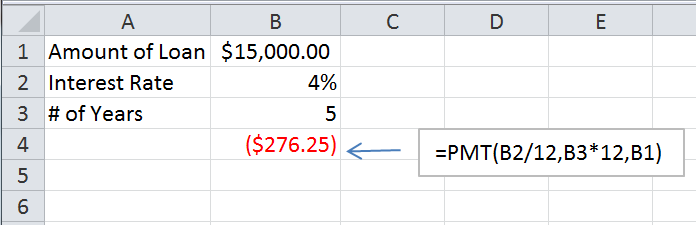
A much more reasonable amount.
If this amount is not acceptable to your budget, or If you are interested in seeing a range of amounts that might be also acceptable to you, then you will have to manipulate the 3 values with which you are working. Yu can reduce or increase the amount of the loan and record those results, then do the same with the interest rate and record those results and of course do the same with the life of the loan. All these results are difficult to keep track of, and here where the What-If table comes in.
We are now going to use the What-If analysis tool on the ribbon to create a table that shows us the results of a varying value. For this example, we will choose to vary the interest rate and examine the resulting monthly payment. Since we are using only one value to vary, this is called a One Variable Table.
Start by arranging the work area as shown in the graphic below. The formula has been moved to be one column to the right and one row up from the varying interest rate column. This layout is required! Then from the tool ribbon, choose Data, What If Analysis, Data Table:
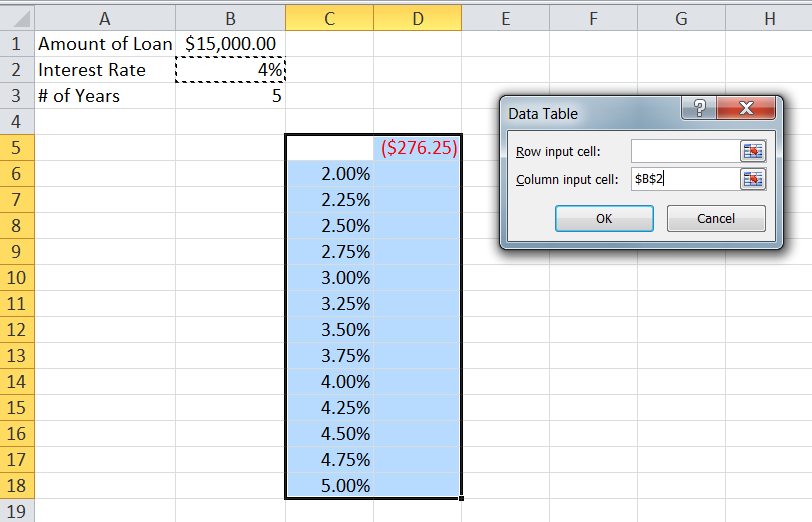
You are presented with a dialog box requesting two cell addresses. Since we are working with a one variable table, we only need to fill-in one of these input values. The one we need to fill-in is the column input cell because our variables are in a column!
When we choose B2, we are indicating that this is the cell that Excel should use to substitute each of the variables in the column, to calculate a new payment for us. Excel will now take the first variable, 2%, and stick it in the cell B2, come up with a new result and place it in the table. Then it will go to the next one in the list and repeat the steps! The result looks like this:

The values are all still negative, and you can now format them for currency.
If you examine the formulas, you will see that they are of a different type, called an array formula and cannot be deleted unless the entire value are inside the table is deleted at once.
To work with two variables at a time, the table layout has to be slightly different. This time we will vary the interest rate and the # of years at the same time. See the graphic below:
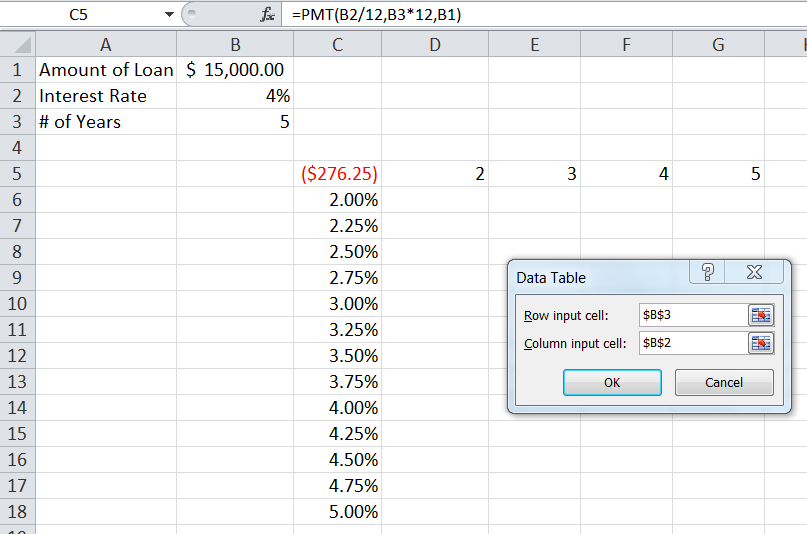
The row input cell is identified as B3 since this is the cell that represents the # of years, and should be used to substitute each of the values in the variable row.
The result will look like this:
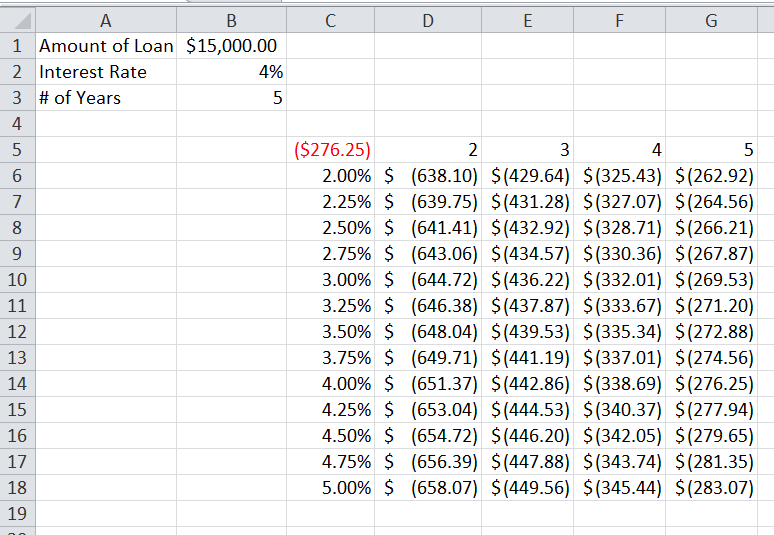
Although you can only create up to two variable tables, you can still change the third variable by manipulating the amount of the loan, and see the entire table change! Now you can print this out and go shopping for your loan at the banks.
Pivot Tables
Lesson 15 has a perfect presentation on pivot tables so I will not say much as to the details on this topic Below you will find just some screen shots for those who do not have the book and some training videos.
A Brief Description.
A pivot table is made from a special kind of list of data. The word itself implies turning the data, or twirling the data to show it in different ways. You would like that this is done with ease and completely with the tool bar - not formulas!
The data usually has many repeating values and so can be summarized in many different ways. Picture that customer list we used recently in our text to columns exercise. If it included the items bought and maybe the years or the date purchased, with the states repeating, and add to that, the hats, coast etc., repeating as well, and also the dates, that would make a great data list from which to make a pivot table. We could focus on the states or the items or both, and filter as well!
The image below shows the pivot table design screen once the data range is identified after clicking Insert, Pivot Table. ( here is a data file for download if you would like to play around as you view the screen shots. It isn't the same data file but it has sufficiebt data so yo could make your own pivot table based on the video)
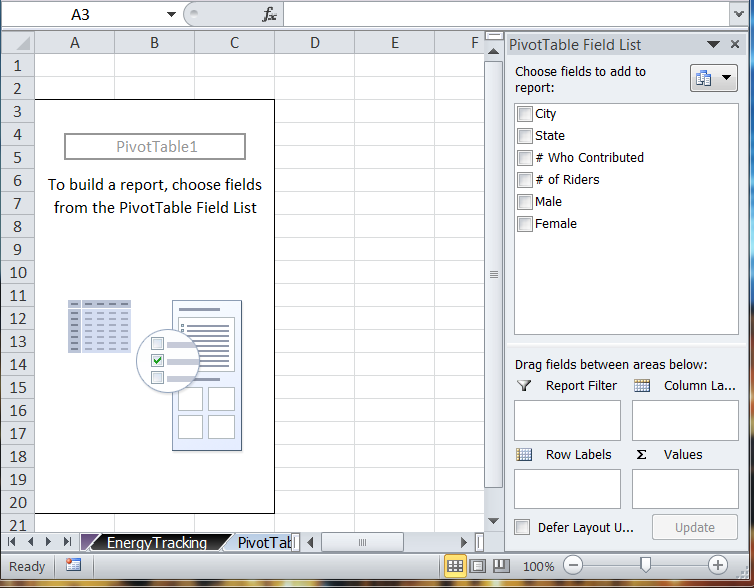
The labels with check-boxes on the right side, are the column labels in the original list chosen. The columns in the list become the fields in the pivot table. To include the fields in the pivot table, you simply check the box, or drag the labels down to the area below, into one of the four areas shown. If you just check the boxes, the fields will be assigned to some default area, but you can still drag it to your desired area.
Numeric values are always assigned to the Values Area, and some calculation (you can choose which), is performed on the values. Take a look at a default pivot table from the textbook file:
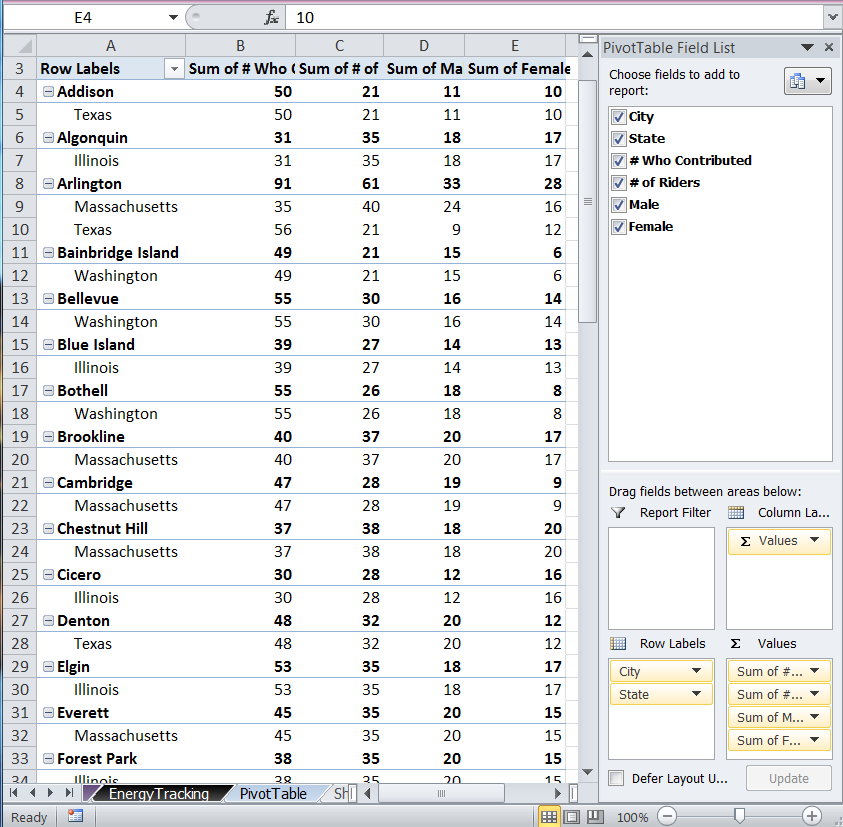
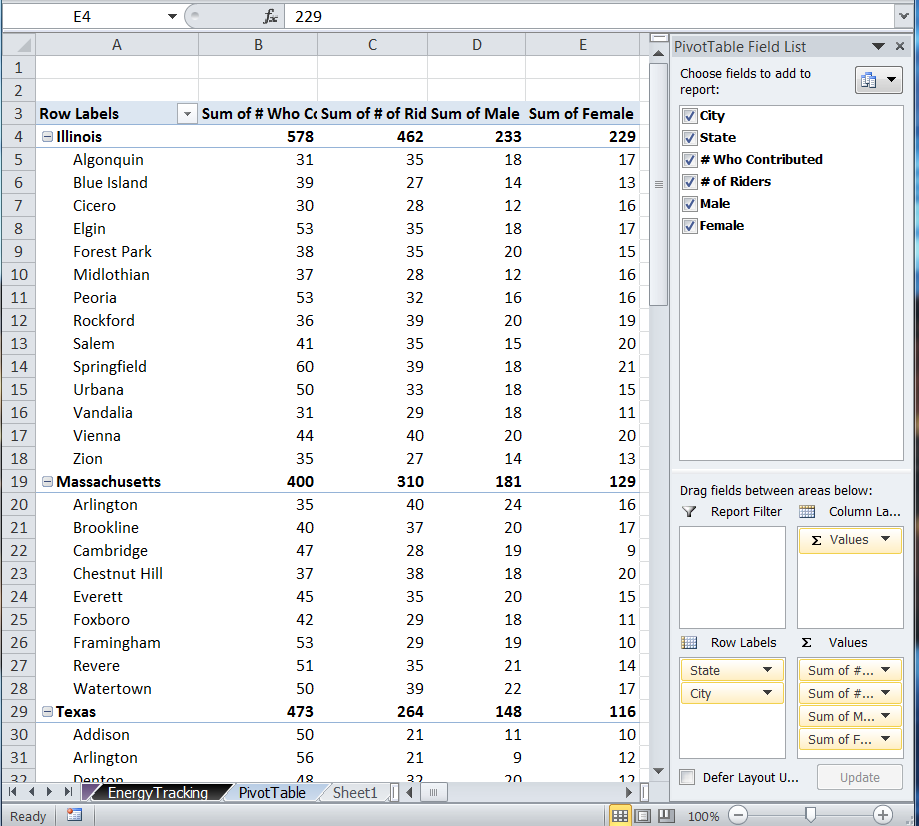
Notice that in the Row Labels Area, the City field is above the State field resulting in an unnecessarily confusing table. By simply dragging that State field (literally dragging it) above the City field will make the table insatntly into this:
You will discover that there are many ways to format, and choose calculations, such as Average and Count. There are also several ways to filter. One simple way is to try dragging maybe the State field, to the Report Area, but in Excel 2010 only, there is a new slicer tool you should check out that accomplishes the same thing.
For those who do not have the book, here are 3 YouTube videos (part 1 through 3) from Titan Tech Training that does a good job of explaining it. You may find others you prefer, but the book does an incredible job of stepping you through the process so this is suggested for those without the book.
Note: In the video, the Pivot Table design screen is slightly different. It shows an older version technique. I know that there is a way to make our versions imitate the old one, but why? So just ignore the direct dragging of fields onto the sheet, and use the dragging of fields into the areas below, on the panel on the right. You will have the exact same results!
These videos are short so don't bother getting the popcorn out.
Project:
Objective:
· Use the NPER function to determine how many periods it will take to reach an investment goal when making regular constant payments at a regular interest rate.
NPER Arguments:
- RATE: rate per period, not the annual rate
- PMT: Payment—always a negative number
- PV: Present value. The amount you have in the bank right now (negative) if you are doing a savings problem, or the amount you owe (positive) if you are doing a loan problem.
- FV: Future value. The amount you will have in the bank at the end of the number of periods if you are doing a savings problem, or the amount you will at the end of the number of periods if you are doing a loan problem (usually 0). This number is always positive (or 0).
- TYPE: Type of payments. 1=payments at the beginning of the period, 0=payments at the end.
How long will it take to reach your savings goal?
Your goal is to become a millionaire. You currently have $100,000 in a savings account that pays 10% annually, compounded monthly. You can save $500 per month. How long will it take to accumulate $1,000,000?
Solution
Rate Per Period: 10% annual rate, divided by 12 periods per year = .10/12.
Payment: $500 (this will be negative, since it represents money that you are paying out).
Present value: $100,000 (this will also be negative, since it represents money that you have already paid out).
Future value:$1,000,000.
The NPER arguments are: NPER (rate, pmt, pv, fv, type)
So the formula is:
=NPER(.10/12, -500, -100000,1000000)
The pmt is negative because it represents money that is being "paid out" to the bank (even though it is going into your account).
The pv argument is negative because it represents the sum of all money that has previously been "paid out" to the bank.There are too many variables that can affect our plan. We could lower our goal, find different interest rates, pay in more or less each month, or start with differing amounts already in the bank.
Your task is to create a two variable What- If Table using the NPER function using any two variables you wish, and demonstrate that you understand the concept of the What If Table.
Terry