We continue the discussion of Macros with the second part, Function Macros.
A function macro is a way to create your own custom functions. Although we know that Excel contains hundreds of functions, there might be a need for you to create a function, a specialized function, of which Excel did not think to create. Perhaps a function to convert form Celsius to Fahrenheit? nope, that one exists. So perhaps you work for a company that has a specific way to calculate commission, or new salary with bonus added. Instead of writing a complex formula every time, you can create one for the company, perhaps called =COMMISSION( ) or =BONUS( ) How amazing is this?
Function Macros
To create a function macro, we need to go straight to the Visual Basic editor and hand-code the macro. We will not be able to record this type of macro.
A function macro begins with the word Function, followed by the name of the function, with parentheses, and inside the parentheses you place the arguments needed to perform the calculation. Just as a real Excel function does. The macro then ends with the statement End Function. All the necessary code stays inside of these statements. It would look like this:
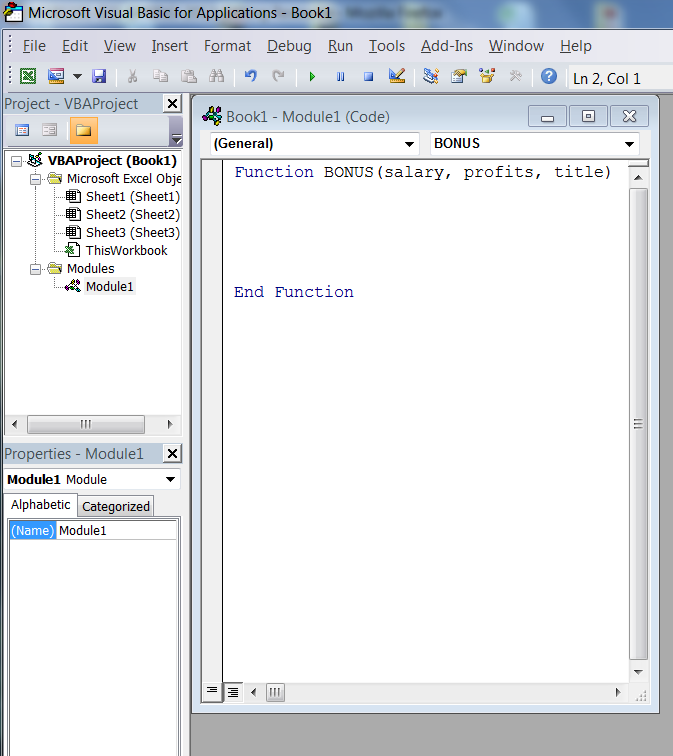
The last line in every function macro code must be the final desired calculated answer, set equal to the name of the function. example:
BONUS = (profits * title) + salary
This is how the final answer is passed to the function name and the Excel sheet gets an answer.
On this Excel sheet
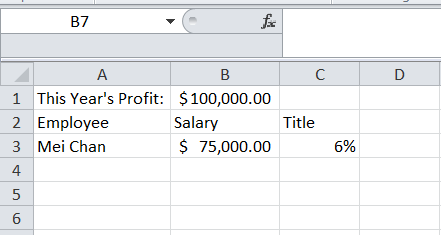
you would have been instructed to enter your function in D3, something like this: =BONUS(B3,B1,C3).
where B3 is the salary amount, B1 is the company profit, and C3 is the percentage due to that employee's title. The order of the cell references is chosen by you, the programmer, but once it is decided, it must always be in this order, just as the =VLOOKUP function must always start with the cell to be looked up, followed by the table, etc.
For our first function macro, we will use the opportunity to learn a few extra things as we work our way to creating the function macro. Be patient.
Our Function will utilize the following:
=INT( ) - (integer) to capture just the integer portion (whole number) of a calculation
=MOD( ) - (modulo) to capture the remainder only or fraction part only of a division.
& to join text.
Examine the work area below and the individual formulas and functions used to get the desired results shown. We are trying to enter the height of a person in inches, but get the number of feet and inches as an answer. Not decimals as is usual with calculations on a computer of calculator.
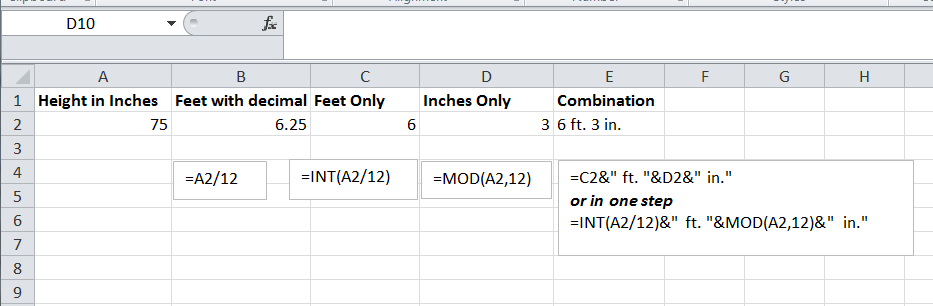
Examine the combination formula that does it in one step making all the previous function unnecessary. This is a more concise way of getting the final answer.
Now we want to make a function that we can use forever and never have to go through these steps again!
You First Function Macro
Start by clicking the Visual Basic Editor button on the Developer Tab. You might end up on a previously created macro sheet called a module, or you might not be on a sheet at all as shown below:
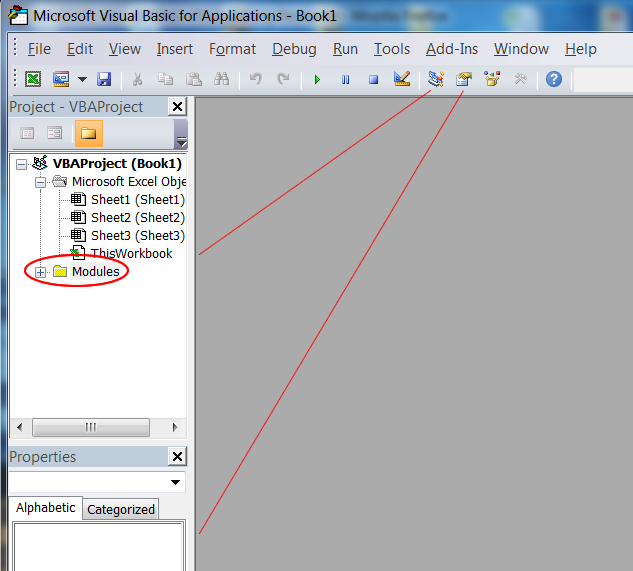
To create a macro, any kind of macro, you need a sheet, called a module. On the Project Explorer panel on the top right, you see there is an icon titled Modules. You can click the plus sign (+) to expand it and see the modules or sheets that have been previously used and just add you new macro, any type of macro, to any one of these sheets or modules. Starting a new module is only needed if we choose to somehow keep certain macros in groups, on one module or another, for later editing etc. If you do not see the module icon indicated, or you want to start a new module, use the menu at the top and click Insert, then module (Not the class module, the regular module).
Now that you have you have your new module sheet, begin to hand-code your Function Macro so it it looks like this:
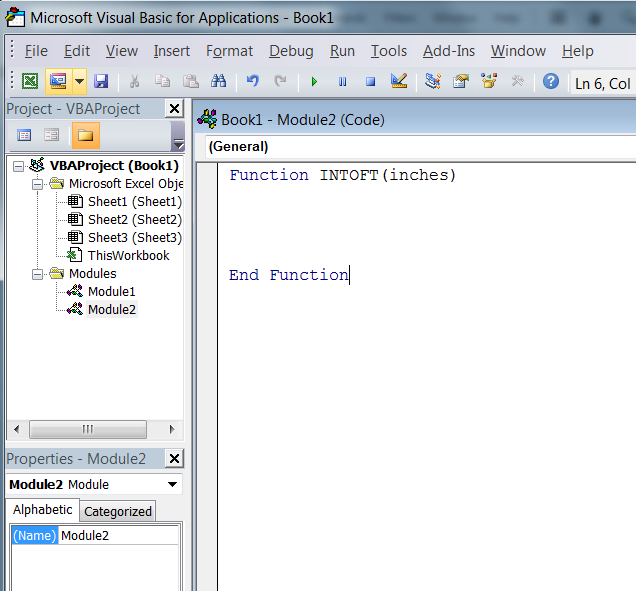
The function name is =INTOFT( ) for inches to feet. You can call it anything you wish. The presence of only one word inside the parentheses, means there is only one argument needed for this function. This one word can be anything you wish: =INTOFT(X) or INTOFT(jose) etc. it represents a temporary storage location where the value on the Excel spreadsheet, in our case, the inches to convert, can be stored! In programming this is called a memory variable. We need this so we can write the necessary code to perform our calculations now, to convert the inches that will be entered in the future. So from now on, in our macro code, when we say inches, we are referring to the value coming from the spreadsheet that user wants to convert. We don't need to know exactly what that value is.
As we write the code, in order to do it in simple steps like we did on the spreadsheet, we will be creating more temporary memory storage areas to hold pieces of the final answer until the last line, where we will transfer the final answer to the function name. This last line is how the answer is passed back to the spreadsheet! Just go through the steps and be amazed!
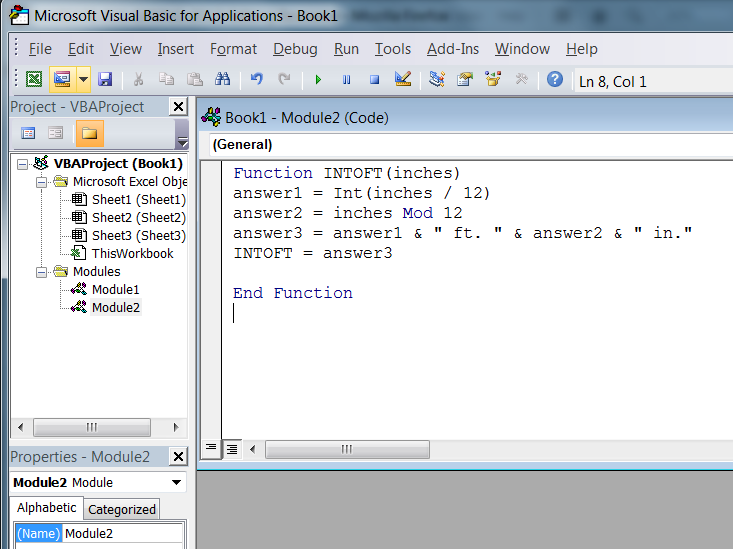
The words on the left side of the = sign, are the temporary storage areas, the memory variables, and the calculations on the right are being stored or shoved into these storage areas via the = sign!
Note that the spaces between the words are important. Usually the spaces are inserted automatically but NOT with the & ( the symbol used for joining). You must put a space on both sides of the &. Any misspelled words or missing spaces will result is this message.
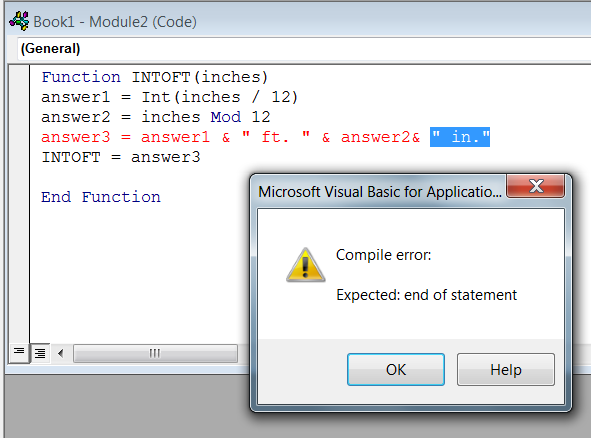
Notice that although most of the Visual Basic commands are the same as Excel they are not all exactly the same. It is after all, a different language. The =MOD( ) function is quite different in VBA. It has to be placed in the middle of the value you are dividing and the value you are dividing by. These keywords, are always in blue.
If your function looks correct, close the VB window and on the spreadsheet, test it out:
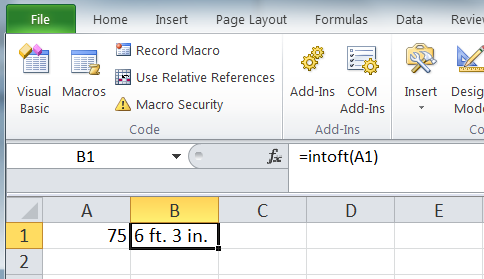
How cool is that!
Here is a shortened version. A more compressed version to match or compressed formula:
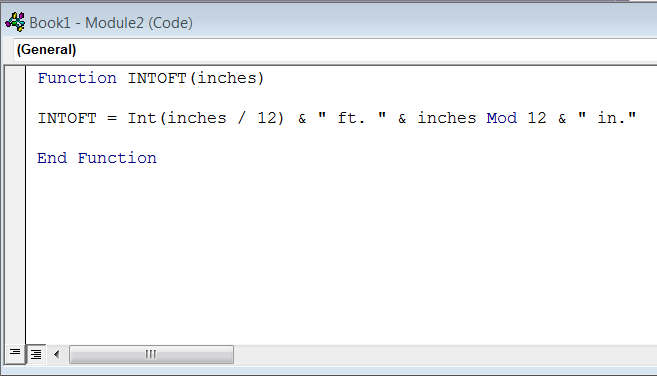
There really was no need for all the smaller steps but do it any way you please. whatever rocks your boat. All that matters is that you end up with the right answer being stored in the name of the function!
Note:
Do not leave a macro unfinished. The errors in the macro will not allow any new corrected ones to work.
Remove any incorrect or faulty macros.
You can delete the unwanted or unused modules by right-clicking and choosing remove.
Project:
The formula for converting form Fahrenheit to Celsius is:
=(A1-32)*5/9
Where A1 has the temperature in Fahrenheit. Create a function macro to do the conversion. If I named the function FTOC, for Fahrenheit to Celsius, then typing this in, should do it: =FTOC(A1) Where A1 contains the temperature to convert.
The next type of macro will be an interactive hand-coded macro.
A function macro is a way to create your own custom functions. Although we know that Excel contains hundreds of functions, there might be a need for you to create a function, a specialized function, of which Excel did not think to create. Perhaps a function to convert form Celsius to Fahrenheit? nope, that one exists. So perhaps you work for a company that has a specific way to calculate commission, or new salary with bonus added. Instead of writing a complex formula every time, you can create one for the company, perhaps called =COMMISSION( ) or =BONUS( ) How amazing is this?
Function Macros
To create a function macro, we need to go straight to the Visual Basic editor and hand-code the macro. We will not be able to record this type of macro.
A function macro begins with the word Function, followed by the name of the function, with parentheses, and inside the parentheses you place the arguments needed to perform the calculation. Just as a real Excel function does. The macro then ends with the statement End Function. All the necessary code stays inside of these statements. It would look like this:
The last line in every function macro code must be the final desired calculated answer, set equal to the name of the function. example:
BONUS = (profits * title) + salary
This is how the final answer is passed to the function name and the Excel sheet gets an answer.
On this Excel sheet
you would have been instructed to enter your function in D3, something like this: =BONUS(B3,B1,C3).
where B3 is the salary amount, B1 is the company profit, and C3 is the percentage due to that employee's title. The order of the cell references is chosen by you, the programmer, but once it is decided, it must always be in this order, just as the =VLOOKUP function must always start with the cell to be looked up, followed by the table, etc.
For our first function macro, we will use the opportunity to learn a few extra things as we work our way to creating the function macro. Be patient.
Our Function will utilize the following:
=INT( ) - (integer) to capture just the integer portion (whole number) of a calculation
=MOD( ) - (modulo) to capture the remainder only or fraction part only of a division.
& to join text.
Examine the work area below and the individual formulas and functions used to get the desired results shown. We are trying to enter the height of a person in inches, but get the number of feet and inches as an answer. Not decimals as is usual with calculations on a computer of calculator.
Examine the combination formula that does it in one step making all the previous function unnecessary. This is a more concise way of getting the final answer.
Now we want to make a function that we can use forever and never have to go through these steps again!
You First Function Macro
Start by clicking the Visual Basic Editor button on the Developer Tab. You might end up on a previously created macro sheet called a module, or you might not be on a sheet at all as shown below:
To create a macro, any kind of macro, you need a sheet, called a module. On the Project Explorer panel on the top right, you see there is an icon titled Modules. You can click the plus sign (+) to expand it and see the modules or sheets that have been previously used and just add you new macro, any type of macro, to any one of these sheets or modules. Starting a new module is only needed if we choose to somehow keep certain macros in groups, on one module or another, for later editing etc. If you do not see the module icon indicated, or you want to start a new module, use the menu at the top and click Insert, then module (Not the class module, the regular module).
Now that you have you have your new module sheet, begin to hand-code your Function Macro so it it looks like this:
The function name is =INTOFT( ) for inches to feet. You can call it anything you wish. The presence of only one word inside the parentheses, means there is only one argument needed for this function. This one word can be anything you wish: =INTOFT(X) or INTOFT(jose) etc. it represents a temporary storage location where the value on the Excel spreadsheet, in our case, the inches to convert, can be stored! In programming this is called a memory variable. We need this so we can write the necessary code to perform our calculations now, to convert the inches that will be entered in the future. So from now on, in our macro code, when we say inches, we are referring to the value coming from the spreadsheet that user wants to convert. We don't need to know exactly what that value is.
As we write the code, in order to do it in simple steps like we did on the spreadsheet, we will be creating more temporary memory storage areas to hold pieces of the final answer until the last line, where we will transfer the final answer to the function name. This last line is how the answer is passed back to the spreadsheet! Just go through the steps and be amazed!
The words on the left side of the = sign, are the temporary storage areas, the memory variables, and the calculations on the right are being stored or shoved into these storage areas via the = sign!
Note that the spaces between the words are important. Usually the spaces are inserted automatically but NOT with the & ( the symbol used for joining). You must put a space on both sides of the &. Any misspelled words or missing spaces will result is this message.
Notice that although most of the Visual Basic commands are the same as Excel they are not all exactly the same. It is after all, a different language. The =MOD( ) function is quite different in VBA. It has to be placed in the middle of the value you are dividing and the value you are dividing by. These keywords, are always in blue.
If your function looks correct, close the VB window and on the spreadsheet, test it out:
How cool is that!
Here is a shortened version. A more compressed version to match or compressed formula:
There really was no need for all the smaller steps but do it any way you please. whatever rocks your boat. All that matters is that you end up with the right answer being stored in the name of the function!
Note:
Do not leave a macro unfinished. The errors in the macro will not allow any new corrected ones to work.
Remove any incorrect or faulty macros.
You can delete the unwanted or unused modules by right-clicking and choosing remove.
Project:
The formula for converting form Fahrenheit to Celsius is:
=(A1-32)*5/9
Where A1 has the temperature in Fahrenheit. Create a function macro to do the conversion. If I named the function FTOC, for Fahrenheit to Celsius, then typing this in, should do it: =FTOC(A1) Where A1 contains the temperature to convert.
The next type of macro will be an interactive hand-coded macro.