Introduction
History
Java was created by James Gosling in 1995 at Sun Microsystems. It is a general purpose object oriented programming language used in a variety of different application. We have different Java versions such as 8, 11, 17, 21, 25. In this course we shall cover JDK 8 as it contains most of the features that are important and relevant.Let us study how a computer program is executed on a computer. The diagram is somewhat simplistic and offers an overview of how a computer will work in general.
See full image
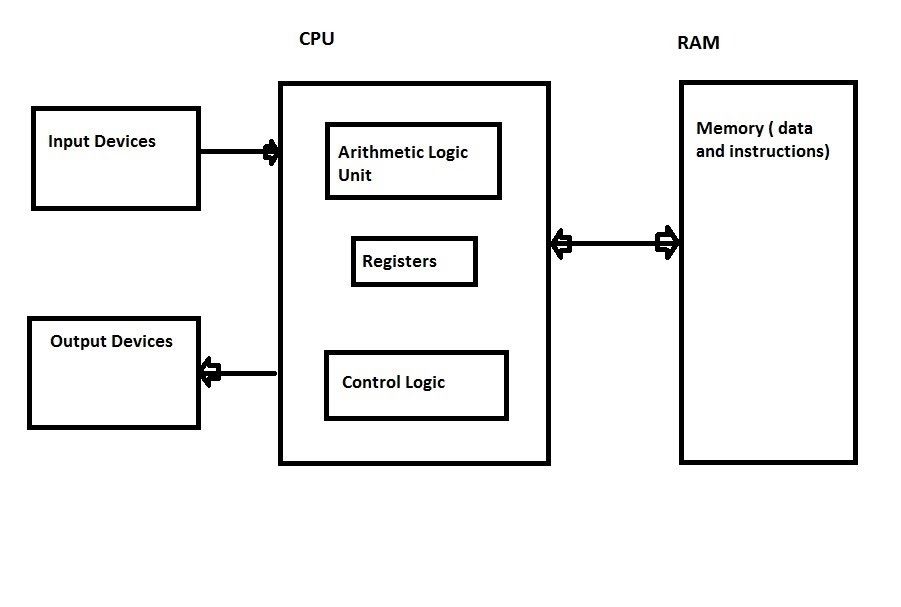
The instructions for the program are stored in the RAM and the CPU grabs an instruction from the RAM and executes it. It will then grab the next instruction and execute that and so on. What type of instructions are these ? Well these are the instructions that the CPU understands. In case of an Intel CPU the machine language is based on x86 . That is the only thing the CPU understands. It does not know about C++ , Java or any other language. It only knows about the x86 machine language. What do the instructions of this machine language look like
000000 00001 00010 00110 00000 100000

100011 00011 01000 00000 00001 000100
As you can imagine writing machine language instructions is a tedious and impractical task. Programmers used Assembly language instead to do their programming. So how did the CPU run Assembly language . Well it didn't. The Assembly language program was converted to machine language by a compiler. What did the Assembly language instructions look like ?
MOV AL, 1h ; Load AL with immediate value 1

MOV CL, 2h ; Load CL with immediate value 2

MOV DL, 3h ; Load DL with immediate value 3
The Assembly language instruction had one to one correlation with machine language and was slightly better in terms of using opcodes but still a tedious task. So now the high level languages came such as Fortran, Pascal, C . For a long time programming was done in these high level languages . These language had features like functions, procedures , structures. A programmer could use variables and did not have to worry about mapping variables to specific addresses in memory. However these languages involved the programmer converting the application problem in terms of the language which still bore a close relationship to the way the CPU worked. The concept of object oriented languages was developed and thus came languages such as Java, C# and C++ . Now a programmer could translate the application problem in terms of objects and classes. The way we think about problems and concepts can be correlated and organized better with object oriented programming. As an example think of an application for the bank . We can think of a customer with properties such as name, age, gender, address, phone. This customer could have an account and the account could be checking or saving. An account can have properties like amount and account number. It could also have methods like add a deposit and so on. This sort of technique can be used in many problems where we can model the solution in terms of classes to more closely resemble the problem domain.
Java is based on the C++ language.
Setup on Windows
Download jdk8 for Windows from:https://drive.google.com/file/d/1ZBkpwf0WaQX2hLcFiLqpjrFSwgauID1-/view?usp=sharing
Setup on Mac
Download jdk8 for Mac:https://drive.google.com/file/d/1-ZEveaOSoo36JKanv_ShrB4_OQmNAlQz/view?usp=sharing
We can use an text editor to edit ".Java" files.
Textpad is an editor that can be used to edit ".java" text files and provides syntax coloring.
Download Textpad from:
https://www.textpad.com/download
Sometimes the jdk install will update the path for us and sometimes it won't. It's always a good idea to have a batch file in the folder where we want to compile and run our files. This way we can also have different JDK versions. We have used the link below as "set1.txt" instead of "set1.bat" as some browsers may complain about downloading files with extension "*.bat" . Once we download the below file; we need to rename it to "set1.bat" . The contents of the batch file may look like:
set path=C:\jdk1.8\bin;C:\WebSite\Learn\2\Java;
File: set1.txt
In the above the first path is where we installed the jdk. This way when we type "javac" or "java" it runs the file in "C:\jdk1.8\bin" folder. The second folder in this case refers to our path for the source code. This may be useful in case we have other files that we want to run. We may decide to place more batch files in this folder that we can execute while we are in other subfolders. One such file can be "run1.bat" . Normally we compile and run the java program by doing "javac" first and then "java" . We can do this in one shot by using the following batch file. Again rename the file to "run1.bat"
File: run1.txt
The contents of fiel "run1.txt" can look like:
erase %1.class
javac %1.java
java %1
Let's download the below file "HelloWorld.java" that prints a line to the console to our source folder.
File: HelloWorld.java
public class HelloWorld
{

    public static void main(String[] args)
    {
        System.out.println("Hello, World");
    }

}
We open our command prompt and navigate to the source folder. We run the file "set1.bat" and then run the below commands.
C:\WebSite\Learn\2\Java\intro>javac HelloWorld.java

C:\WebSite\Learn\2\Java\intro>java HelloWorld
Hello, World

C:\WebSite\Learn\2\Java\intro>

The "javac" command compiles the java file to a ".class" file.
We can see a new file that got created after running the "javac"
command. The new file is "HelloWorld.class" :

C:\WebSite\Learn\2\Java\intro>dir HelloWor*.*
 Volume in drive C has no label.
 Volume Serial Number is 903D-2B35

 Directory of C:\WebSite\Learn\2\Java\intro

01/29/2026  02:33 AM               426 HelloWorld.class
01/29/2026  02:05 AM               140 HelloWorld.java
We have compiled the Java program but we cannot run the ".class" file. From the initial discussion we know that the CPU can only run machine language instructions. The ".class" does not have machine language instructions. Well what does it have ? It has something called Java bytecodes that are similar to machine language instructions but it's something that is made up and does not correspond to a specific architecture or CPU. So we have the bytecodes now but how do we run them ? Well we need a program called JVM( Java Virtual Machine ) . It's called the Virtual Machine because the bytecodes are not actually machine language instructions but sort of made up. The JVM will take the ".class" file and then run the bytecodes in it. We use the command "java HelloWorld" to do that. The "java" is essentially the JVM and the command does not require us to type the extension ".class" in order to run it.
We often hear the phrase "Write once run anywhere" when reading about Java. This is not 100% accurate. If we compile a Java program and we obtain a ".class" file then we can give that ".class" file to another person on another computer with a different operating system but that does not mean that person can just run the ".class" file. No, the person needs a JVM installed on that machine that understands ".class" files and runs it.
Since the ".class" is not machine language and the JVM runs it by interpreting it the JVM runs the program slower than a complete machine language program. However the JVM can have components like JIT( Just In Time ) that compile the Java code to machine language code during executing helping with the speed.
One could say that Java is like a scripting language. In a scripting language we
write the script say a Unix shell script. We give the shell script to someone
else at another computer and they can run the script as well. However the
intermediate step confirms that the ".java" code did not have any syntax errors and
is better from the perspective of structure and organization.
Below is a video showing the install and running of the
"HelloWorld" program.